WISER Tracker App
| Description | Viewing and management app for the WISER Real-Time Location & Tracking system |
Tracker App
Getting Started
Quick Start
The WISER Tracker App is a viewing and management app for the WISER Real Time Location & Tracking system. It provides real-time remote viewing and administration of one or more WISER Arenas.
Our software offers a convenient solution for handling multiple buildings, areas outside/around buildings, and even between buildings, allowing you to set up distinct meshes, referred to as 'Arenas,' for each building.
System Requirements
WISER Tracker operates the same and contains all features on all platforms.
- Windows 10 version 1809 or later
- 8 GB Ram or more
- Network Connection
- Minimum Android 7.0; support prioritized for later versions
- ARMv8 and newer
- 4 GB Ram or more
- Network Connection
- iOS 14.0 and later
- 4 GB Ram or more
- Network Connection
Info
An installation of WISER Tracker Server software is required. WISER Systems provides a public test server for demonstration purposes. If your server is not yet configured, this will let you familiarize yourself with the app's functionality in a live setting.
Download & Install
Available at Google Play
Available at App Store
Contact WISER support for a Windows .exe installer download link.
Info
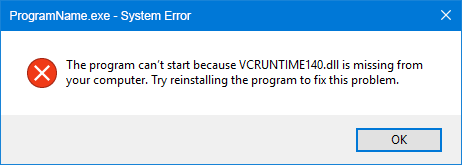
Some Windows PCs may lack Microsoft's common VC++ redistributable. If you receive any variation of the following error message regarding VCRUNTIME.dll, the redistributable should be downloaded and installed from Microsoft.
https://aka.ms/vc14/vc_redist.x64.exe
Connecting to an Arena
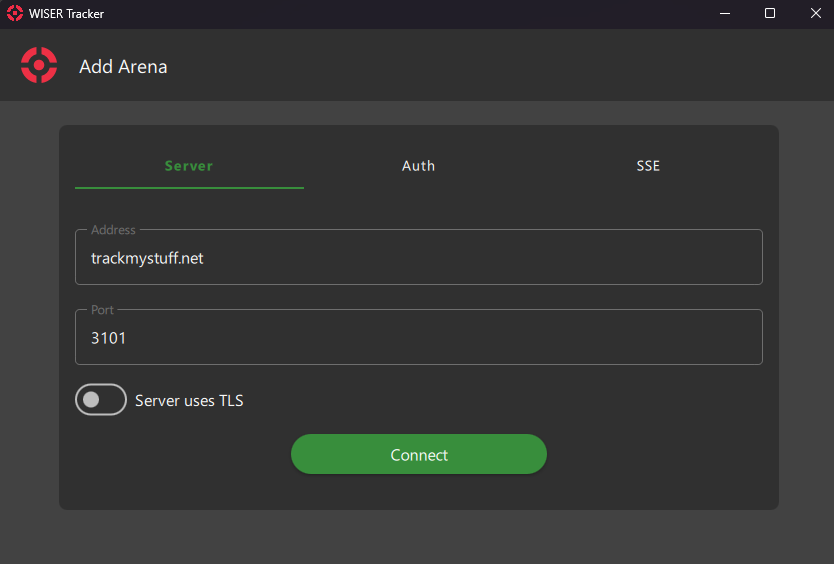
When you open the Tracker App for the first time, the Add Arena Screen will appear
Info
By Default, the Demonstration Arena Settings will already be populated with the demonstration server address (trackmystuff.net). This server is provided by Wiser Systems and All non-administrative features are available.
If your arena is not yet configured. This will let you familiarize yourself with the app's functionality in a live setting.
Mass Installation
Besides an ".exe", we offer ".msi" and ".msix" installers to assist remote deployment. Because settings are stored at C:\ProgramData\WISER Systems and not in the installation folder, you can update, uninstall, or reinstall the app without losing your workstation configurations.
The Tracker App also has a Command Line Interface (CLI) to help mass replicate station installs.
To deploy a settings configuration, set up one station first and configure how you would like to replicate it.
After you are done, copy the settings .ini file and deploy it to all desired stations.
Info
The settings file can be found at C:\ProgramData\WISER Systems\WISER Tracker.ini .
If you have saved sessions with Authentication, you need to perform an extra step at the new stations.
Run the following CLI, or a .bat or .ps1 script, in the Tracker App folder
WISERTracker.exe --update-session-password <session_name> --host <address> --user <user> --password <password>
The session name, host, port, and user are all required must match exactly an entry already present in the settings .ini file. If port is not specified, it will default to 3101. "Host" is the portion of the URL without the http:// or port. For example, if the settings file contains the following,
[Sessions]
...
Warehouse\Arena\1\Username=ReadOnlyUser
Warehouse\Arena\1\RestUrl=https://10.10.0.18:3101
...
Then the update command would be,
Arena
Map Screen
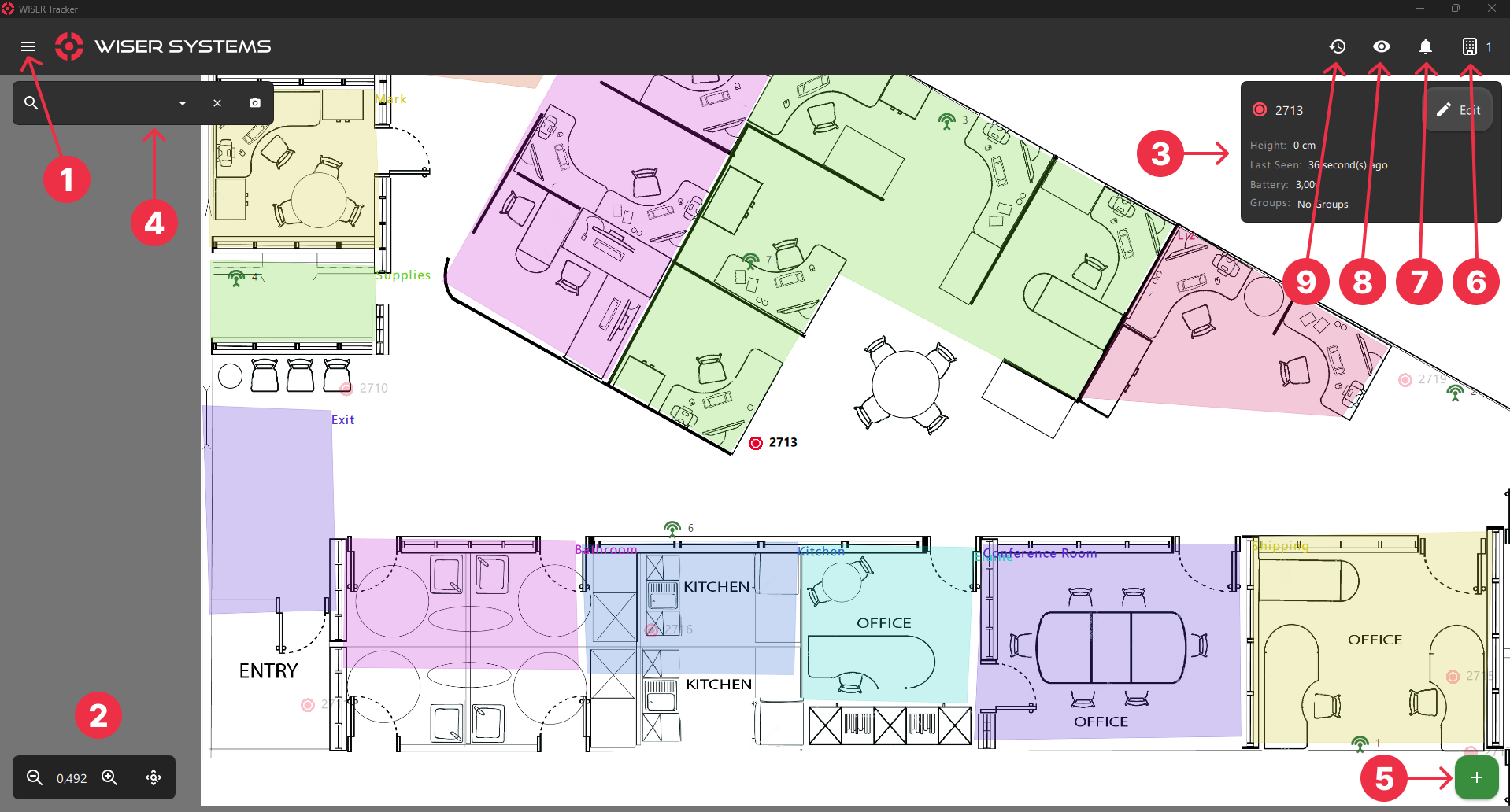
If you have already set a Floorplan Image on the Tracker Server, the same image will be displayed on this screen. Otherwise, you can go to the Settings Screen and upload one.
All Tags inside the Mesh System will show up automatically and you can begin tagging your assets right away. This seamless process enables you to achieve an instant and comprehensive visualization of your assets.
There are many functions available while viewing your arena:
Info
Regional Format (E.g.: 1.000 vs 1,000) will update based on your System Language & Region Settings.
Unit System like Imperial or Metric can be configured at the Application Settings Screen
Zoom & Pan
Zoom in and out with your mouse wheel, by pinching on touch devices or by using the controls on the bottom left corner.
Click and Drag your floorplan to view different areas.
Tag Details Panel
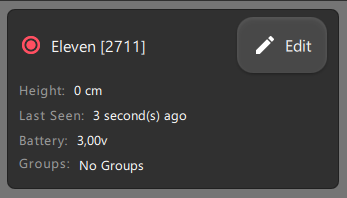
You can Click or Tap a Tag to select it and see its Details. This Panel can also be triggered by the Search Bar and the Locate button on the Tags & Groups Screen.
You can click anywhere in the Floorplan to close the Panel.
Info
INFO
Even Hidden Tags will show up when you Click Locate. They will be visible as long as the Panel is open.
Search Bar
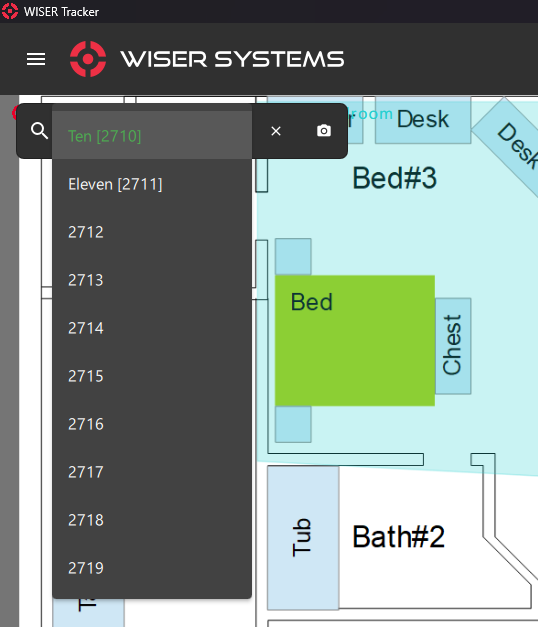
You can type a tag Name, Hex Id or Alternate Id in the search bar. The Case Sensitive Settings on the Server General Settings Screen will be taken into consideration and an autocomplete effect will be available.
A dropdown is also available to list all tags from this arena. Click/Tap the name, inside the list, to zoom to that tag and view its Map Screen: 3 Tag Details Panel .
You can click the x inside the search bar or anywhere in the Floorplan to close the Panel.
Add Button
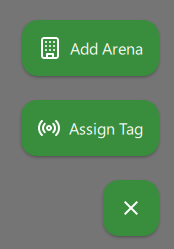
This Floating Add Button is a shortcut for the Add Arena and Tag Assignment.
Arena List Panel
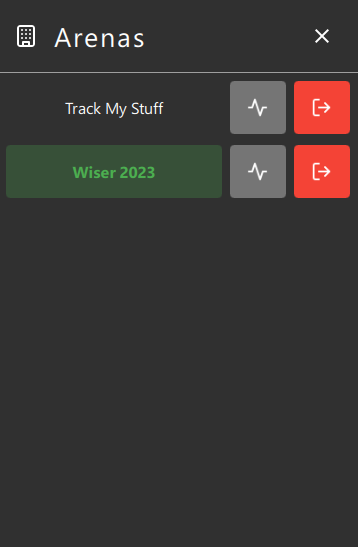
You can use this Panel to switch between arenas, by clicking the arena's name, and manage them with ease. The app will also automatically switch to an arena when you click the Locate button on the Tags & Groups Screen or use the Tags & Groups: Arena Filter (Available on some Screens).
Alongside, you will find 2 other buttons, Arena Details & Status and Disconnect Arena.
Info
Arenas without a name will display an ID like trackmystuff.net::3101::<username>.
Notification Panel
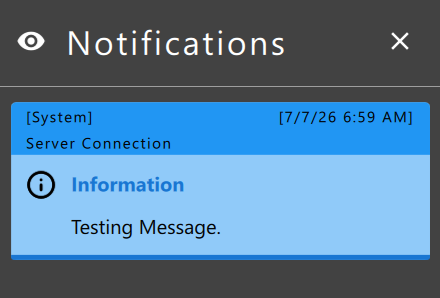
Provides notifications of system issues and triggered Rules.
Visibility Panel
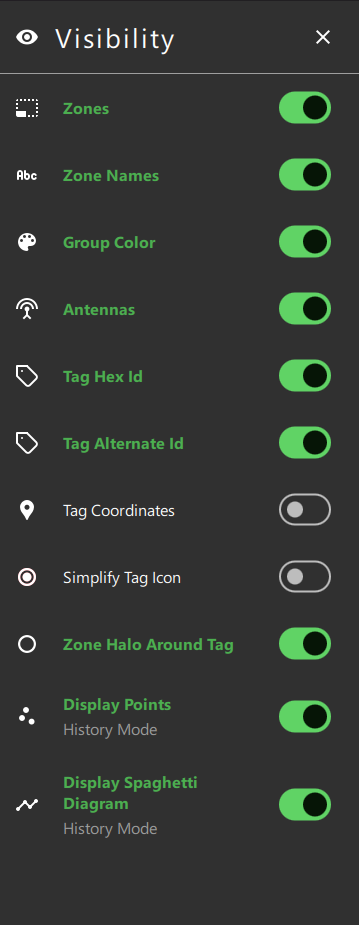
You can configure the visibility of some features. These options are also available on the Application Settings Screen.
Add Arena
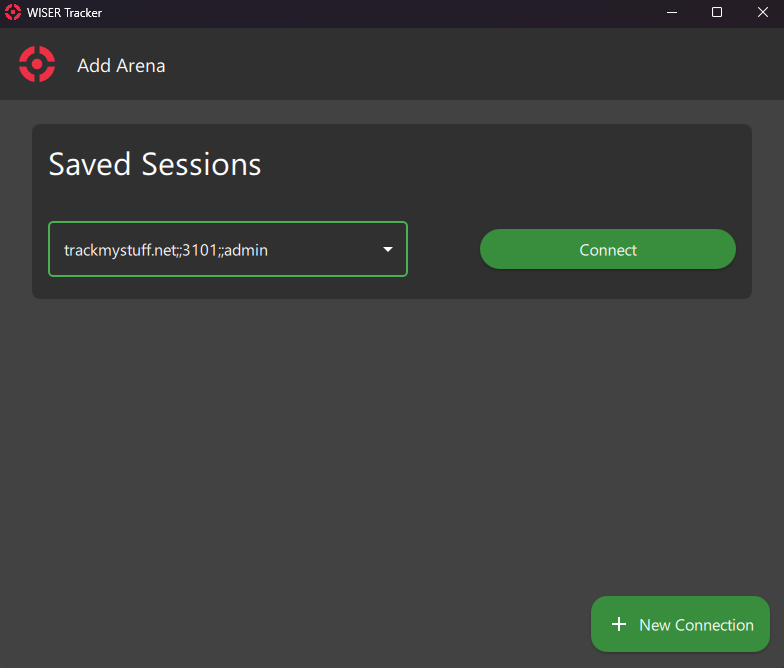
This Page Might show a Saved Session Section on Top if you have saved Sessions. To add a new Arena, click the New Connection button and a new section will fill the space below.
If you don't have any Saved Sessions, the following layout will be visible.
Below the New Connection text, you can see that there are 3 available Tabs, the first, Server is already selected.
Server Tab
Type your arena's Server Address and Server Port. The same data set up in the Tracker Server.
Server Uses TLS
Check this option if the server is configured to use TLS
Auth Tab
Danger
If your server is open to a public network, we advise you to set up Authentication.
Here you can type your server's configured authentication.
If you didn't set up any Authentication, you can leave these fields empty.
Info
Some features require Authentication to be configured and enabled.
SSE (Server Sent Event) Tab
Type your arena's SSE Address and SSE Port. The same data is set up in the Tracker Server.
Info
For SSE, Authentication is required.
Arena Health
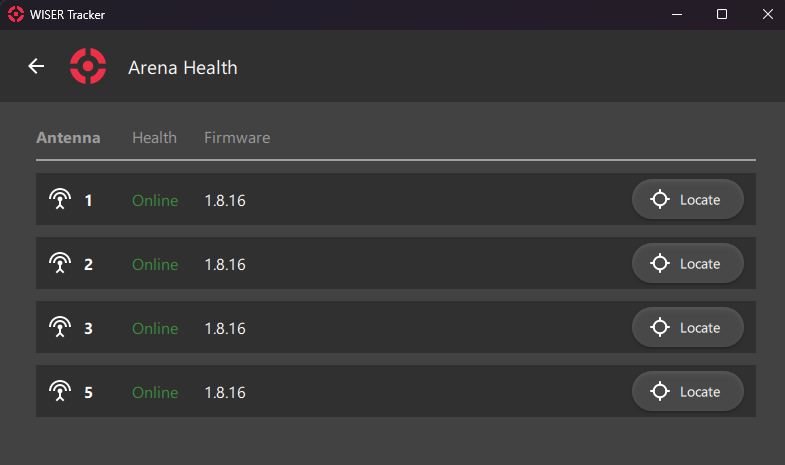
Currently, only Antennas Health are Available. You can check some information and locate them on arena.
Arena Details & Status
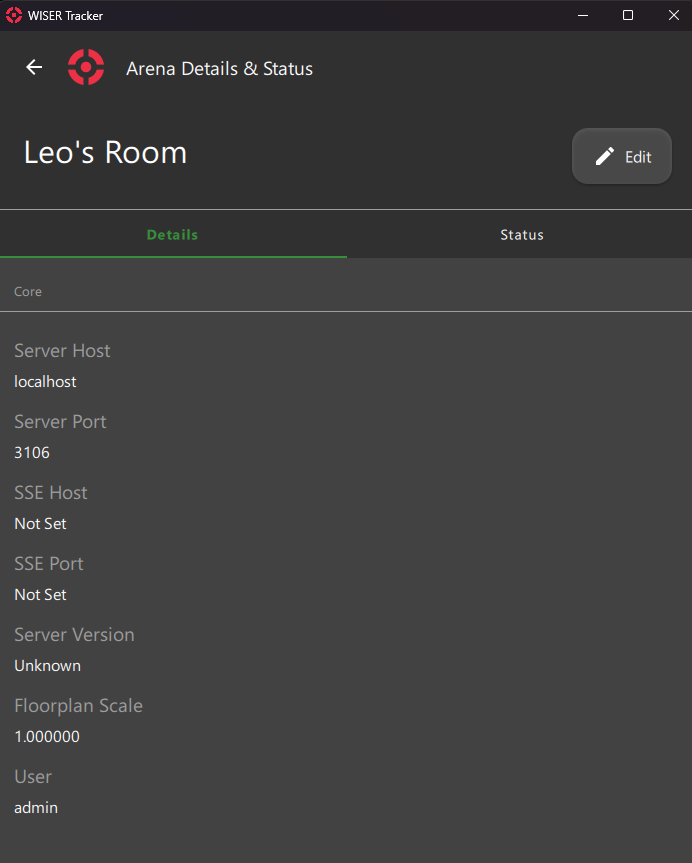
You can use this screen to change the Arena's name and check some details and status.
Connection Info
Info
Server Version is only available for servers running version 2.18.49 or later.
User Permissions
Coming Soon
Status
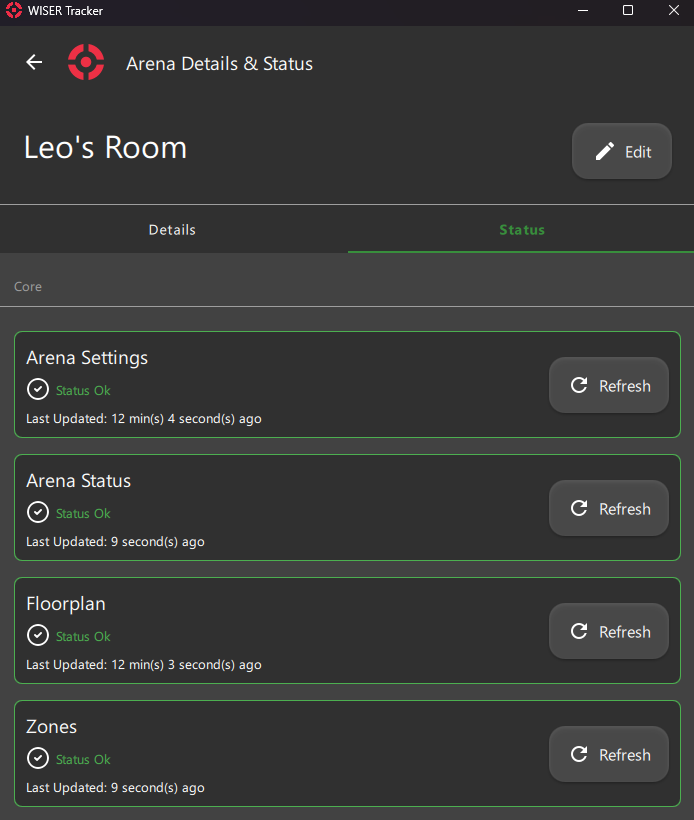
The app constantly retrieves information from the Wiser Server. This page is a good way to see if any connection is showing problems.
Session
Session
Save Session
To Save a Session you must be at Home Screen and go to the Main Menu and Click the option Save Session.
A dialog will open and you will be able to write a name for your session.
All connected Arenas will be saved in the Session alongside their respective Auth configuration.
Connect to Session
All saved sessions will be displayed on the Add Arena Screen. You can use the dropdown and Click the Connect button.
Session Manager
Currently, on this screen, you can see all your saved sessions and the Arena's Connection associated.
Delete Session
- Go to the Session Manager Screen
- Use the dropdown to select the Session you want to Delete
- Click the Delete Session button and Confirm
Use Saved Session on New Install
Since Version 4.0 you can use a station saved sessions for new installations.
Check Quick Start for more information.
Tag
Tags & Groups
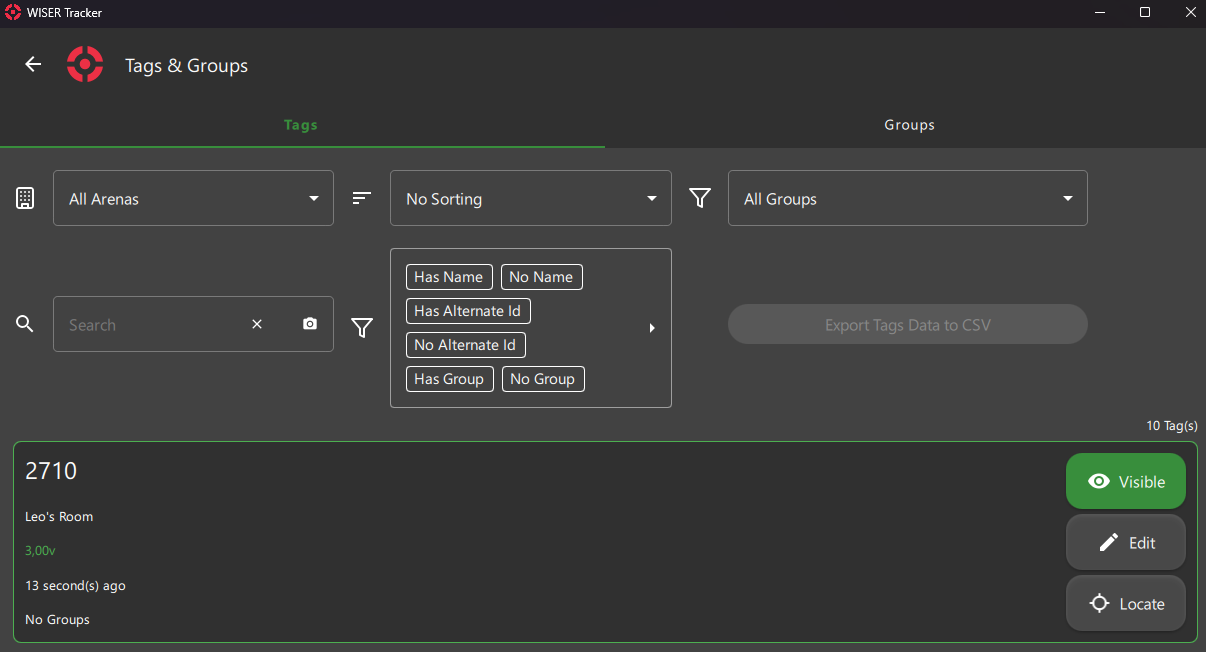
This Screen is available from the Main Menu on the First Steps: Home Screen and in here, you will be able to List, See, and Edit Tags and Groups.
You can toggle Tag or Group View in the top Tab Bar.
New Groups
To create new Groups, select the Group option in the top Tab Bar and a Floating Button will be available in the Bottom Right corner of the Screen
Filters & Actions
Arena Filter
By Default the All Arenas options will be selected and it will list all Tags and Groups from connected Arenas.
Selecting an Arena will also set that Arena as active (in the Home Screen).
Search Filter
- Search Groups by
Name. - Search Tags by
Hex ID,NameorAlternate ID.
Info
Search will ignore whitespaces.
If your tag is set to "My Tag - 1234", you can type "MyTag-1234".
Sort
You can select the sort of your liking from various options. The Sort option will revert back to default every time you leave the screen.
Group Filter
You can list Tags from All Groups or Select a single Group.
Property Filter
Mix the available options:
Has Extra Info: Will List Tags that have an Extra InfoNo Extra Info: Will List Tags without an Extra InfoHas Alternate ID: Will List Tags that have an Alternate IDNo Alternate ID: Will List Tags without an Alternate IDHas Group: Will List Tags that are in a groupNo Group: Will List Tags without any groupIs Inactive: Will List Tags that Never got a Location/PingNot Inactive: Will List Tags that Got a Location/Ping at some point
Export Tag Data to CSV
- A single Arena must be selected.
- We use
;as Separator. - Unit System (Imperial or Metric) from the Application Settings Screen will be used.
Cards Action Buttons
Visibility
- Tags & Groups can have their visibility toggled.
- Timeout Tags can not be set to visible.
- Tags Added to a Group will replicate its Visibility.
- Tags Removed from a Group will be set to Visible.
- Groups will propagate their visibility to their Tags.
Info
After Updating a Group Visibility, you can cherry-pick some tags and set their visibility individually.
Info
We currently don't offer a way of setting a Group as Leader/Main/Active.
Tags with more than one Group will replicate the last updated Group Visibility.
Edit
Both Tag and Group offer an Edit Screen. Remember to hit Save when you are done.
Locate
This action will move you to the First Steps: Home Screen and open a First Steps: 3 Tag Details Panel. The app will also automatically switch to Selected Tag's Arena.
Info
Even Hidden Tags will show up when you Click Locate. They will be visible as long as the Panel is open.
Tag Assignment
This Screen is a quick way of editing Tags. It works like a shortcut, available from the First Steps: Home Screen
It is usually used for Assigning new Tags or Setting up a new Work Order for a new Cycle of Operation.
A Barcode Scanner is also available for Devices with a Camera.
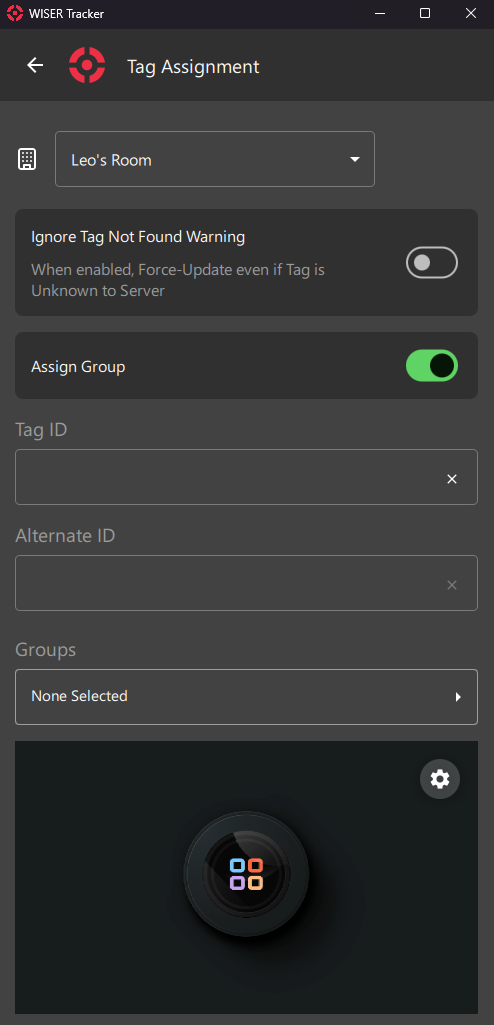
Arena Filter
Select the Arena you want to Assign Tags.
Special Options
Ignore Tag Not Found Warning
Sometimes recently arrived Tags still haven't got a Ping from the server and so, they are Unknown.
To avoid such warning and a Failed Update, you can toggle this option.
Assign Group
This option will enable/disable the Groups Field
Input Fields
Tag ID
Tag Hex ID
You can use a Keyboard, a Portable Barcode Scanner or your Device's Camera.
Alternate ID
You can use any kind of internal ID, like Work Order, Part Number and so on.
Groups
Select Pre-defined Groups
Info
Assign Group Option must be Enabled
Camera Preview
Camera-Available Devices will have a Preview Screen. You can click the Gear Icon for a few Settings and Camera Device Selection.
Tag Extra Properties
Since server version “2.19.44” and internal app version “4.2.0”, you can configure up to five extra properties for all tags. This feature is still experimental, and we will keep improving it.
To set it up, open the app and go to: Settings > Tracking
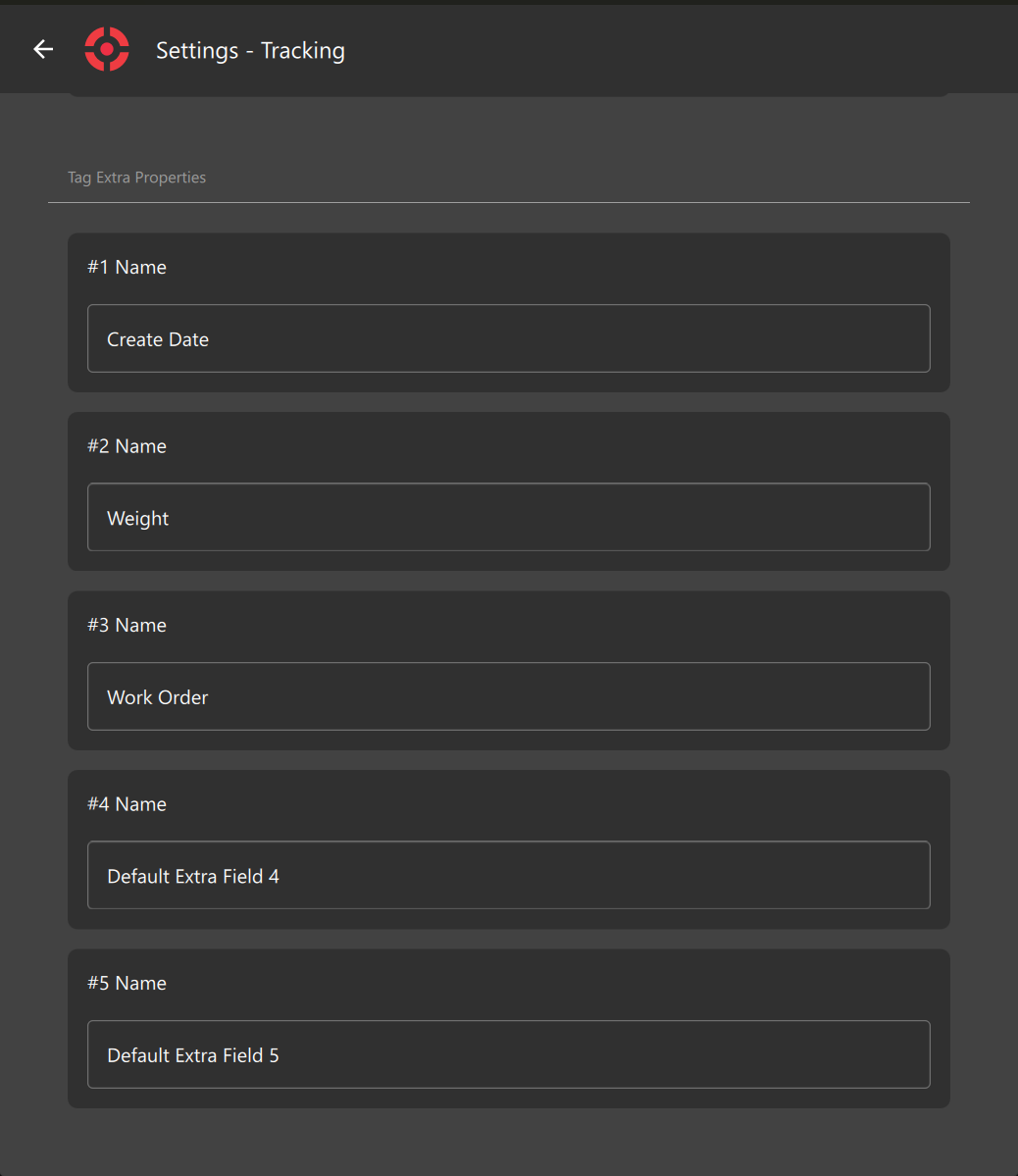
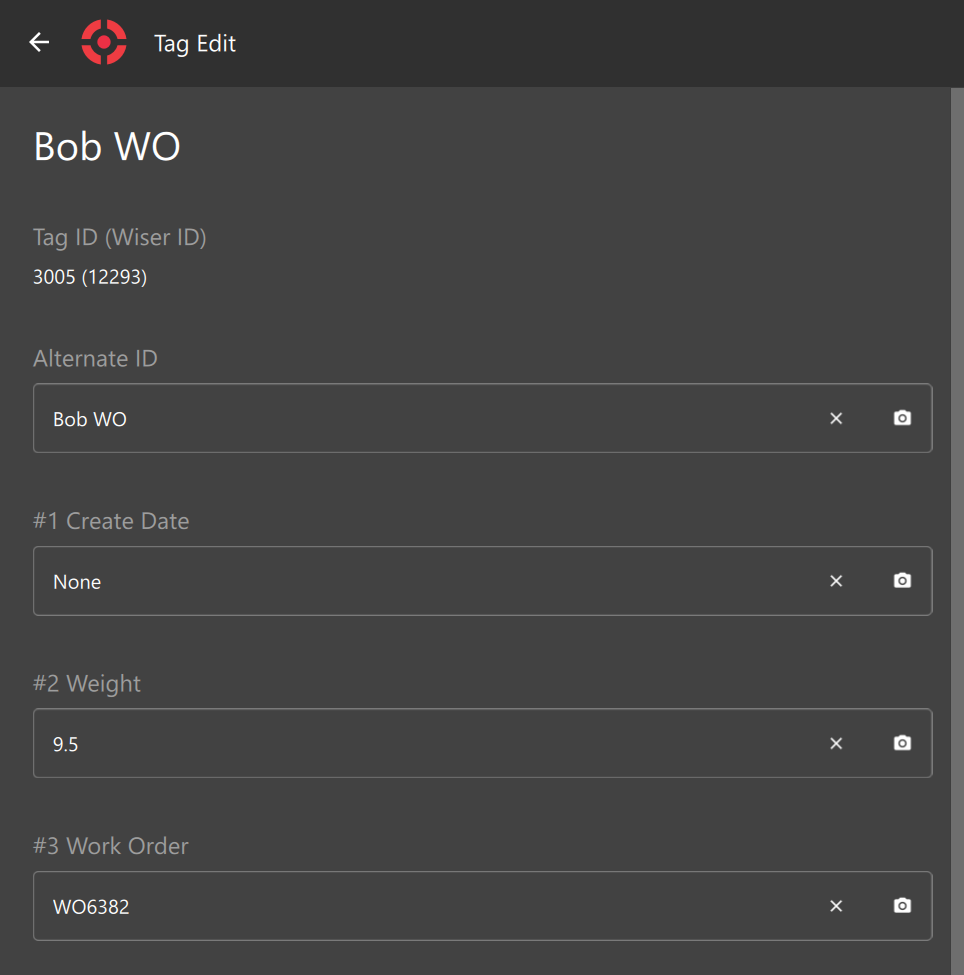
When you are done customizing them, leave the screen and those option will be available to edit at Tag Edit Screen and Tag Assignment Screen.
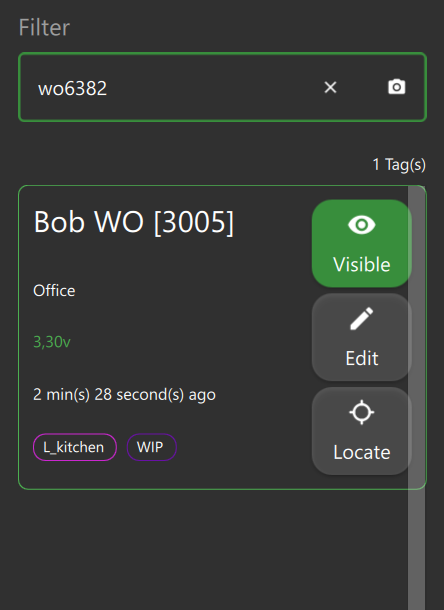
You will also be able to see those fields in the Tag Info Panel (Arena Map)
.png)
and they are also searchable!
Tag Rules
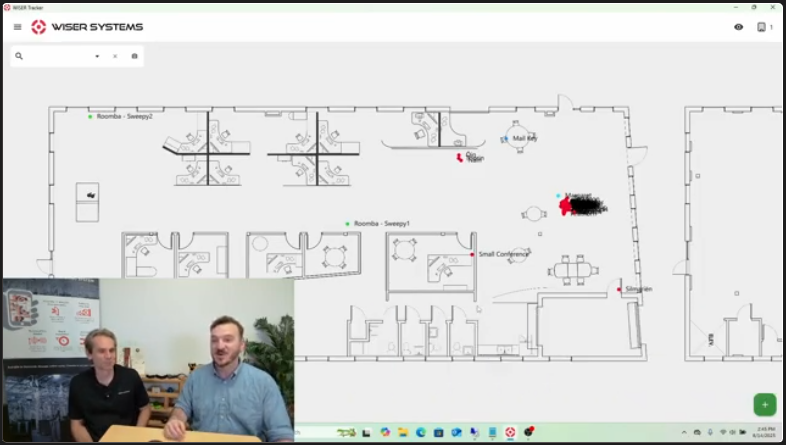
https://www.youtube.com/watch?v=QjL_eeHo_QU
Warning
This page is a work-in-progress. Please be patient with our mess.
Settings
Application
These Settings are all Related to the App Only. Nothing will be saved or requested to the Wiser Server.
General
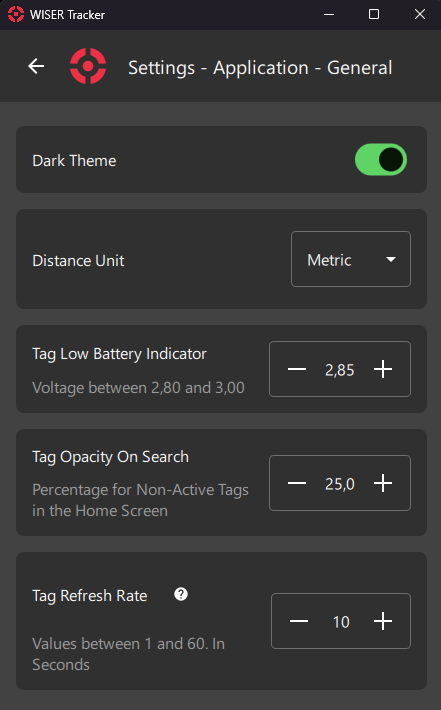
Dark Theme
Dark Theme will darken all colors across the App. This will help take some of the strain off your eyes and decrease energy consumption.
Distance Unit
Select Distance Unit for usage in the App. Either Metric or Imperial (Default).
Tag Low Battery Indicator
Select voltage for the Low Battery Indicator. This indicator will be displayed on the Home Screen.
Tag Opacity On Search
Selecting a Tag, by Clicking on it, Search or Locate Button will set all others tags opacity to this value.
Tag Refresh Rate
How Often the App Requests Updated Info from the API.
Visibility
Changes will take effect on the Home Screen. These Options are also available at Home Screen > First Steps: 8 Visibility Panel
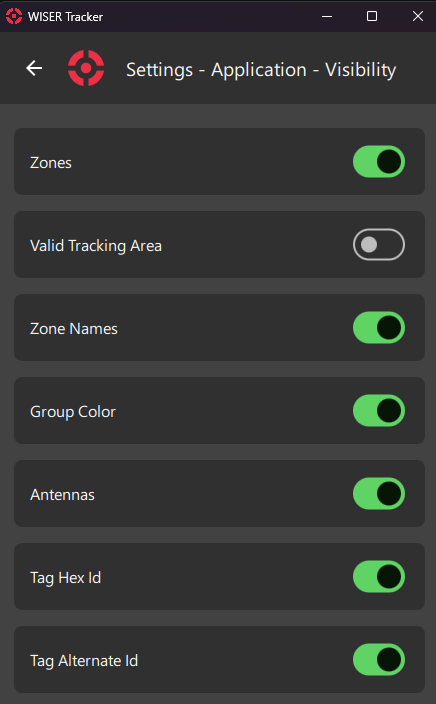
Zones
Display Zones.
Valid Tracking Area
Display Valid Tracking Area.
Zone Names
Display Zone Names.
Info
The name will be displayed next to the first point created.
Group Color
Display Tag in Group Color, instead of the default Red color.
Info
We currently don't offer a way of setting a Group as Leader/Main/Active.
Tags with more than one Group will use the first Group's colors from the PassiveTag Endpoint.
Antennas
Display Antennas
Tag Hex ID
Display Tag Hex Id
Tag Alternate ID
Display Tag Alternate Id
Tag Coordinates
Display Tag's Coordinates (X, Y, Z) below the Name.
Simplify Tag Icon
Display Tags as Dots. When using a large number of Tags, using just a Dot might have a less crowded visualization.
Zone Halo Around Tag
Display a colored halo with the Zone's color around the tag, for Every overlapping zone.
Display Points
Display Tag Points on the Home Screen. Available in History Mode.
Display Spaghetti Diagram
Display a Spaghetti Diagram on the Home Screen. Available in History Mode.
Camera
These Settings are also available inside the Camera Preview by Clicking the Gear Icon.
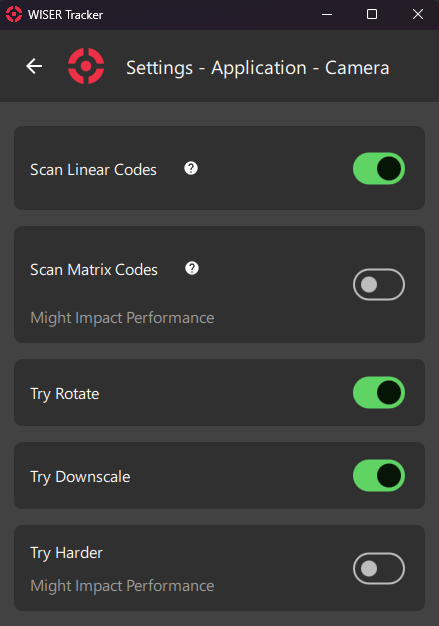
Scan Linear Codes
Scan Classic Barcodes:
- Codabar
- Code39
- Code93
- Code128
- DataBar
- DataBarExpanded
- EAN-8
- EAN-13
- ITF
- UPC-A
- UPC-E
Info
To Scan Wiser Tags, using the Camera, this option must be enabled.
Scan Matrix Codes
Scan Matrix and QR Codes:
- Aztec
- DataMatrix
- MaxiCode
- PDF417
- QRCode
- MicroQRCode
Info
May impact performance
Try Rotate
Rotate the Image, internally, to help detection.
Try Downscale
Downscale Image, internally, to help detection.
Try Harder
Tries Harder.
Info
May impact performance
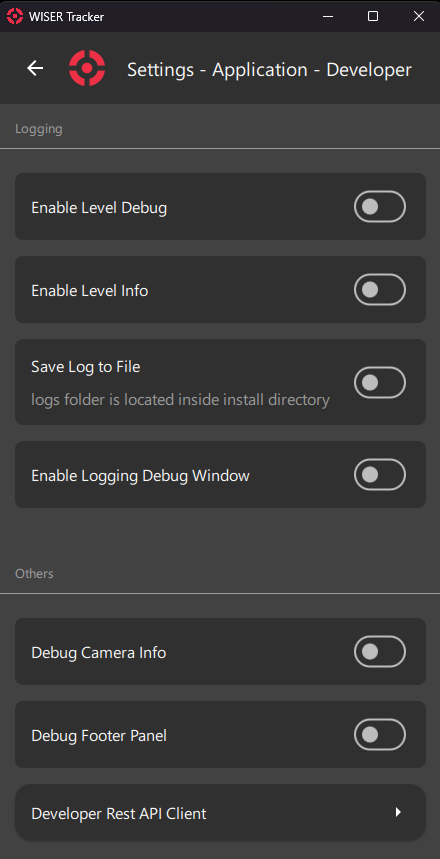
Developer
Developer Settings Used by Wiser Team in Support Calls
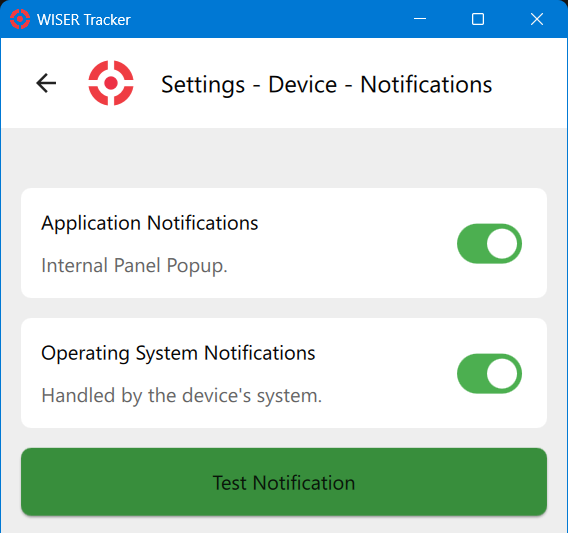
Notifications
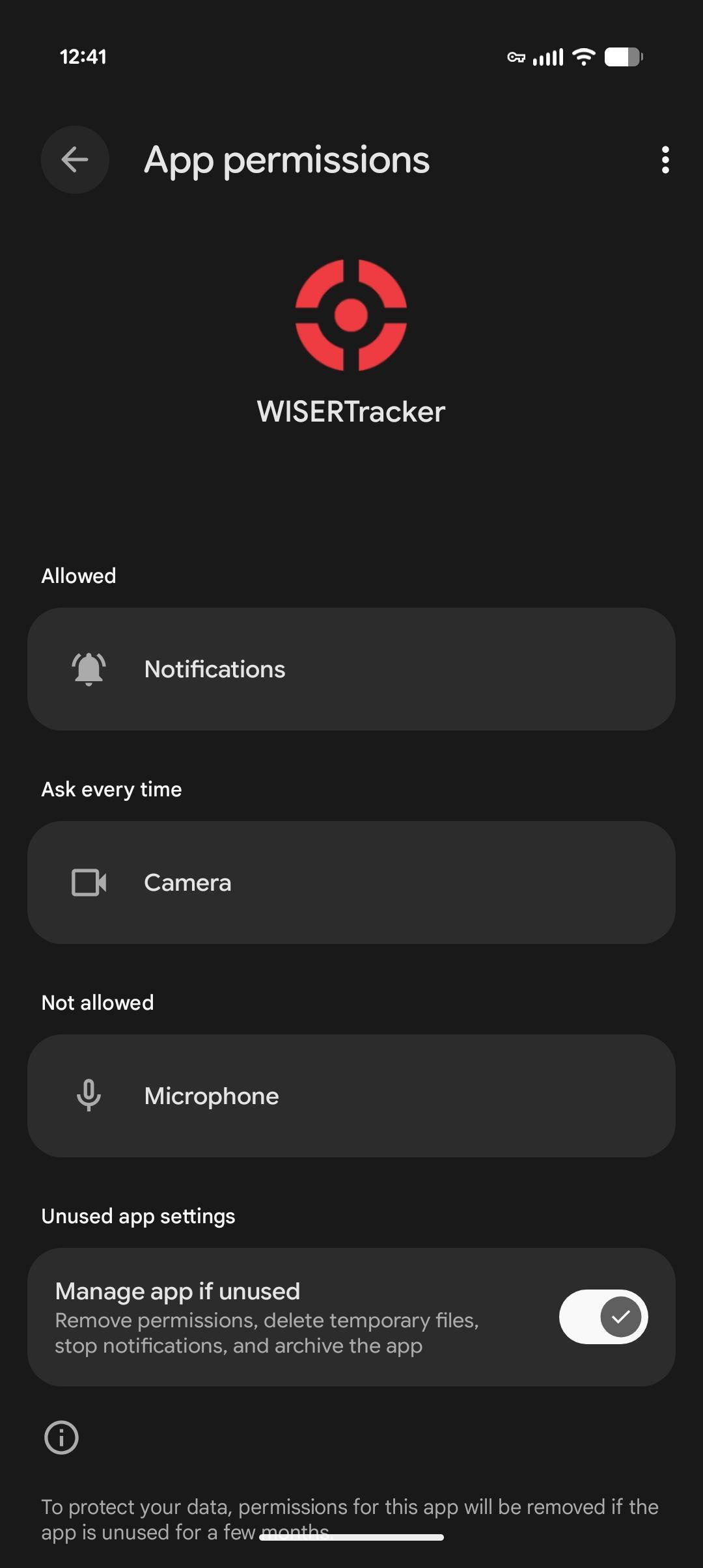
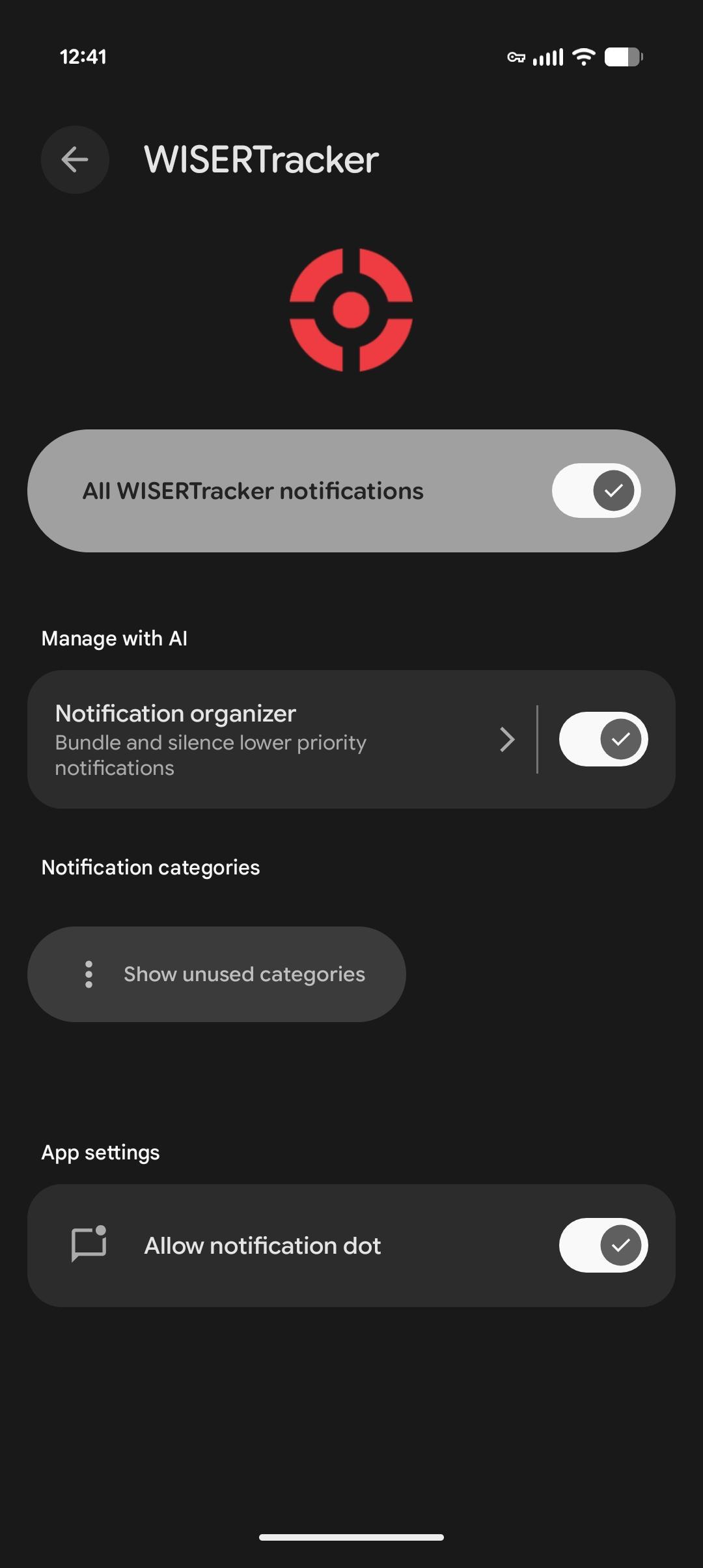
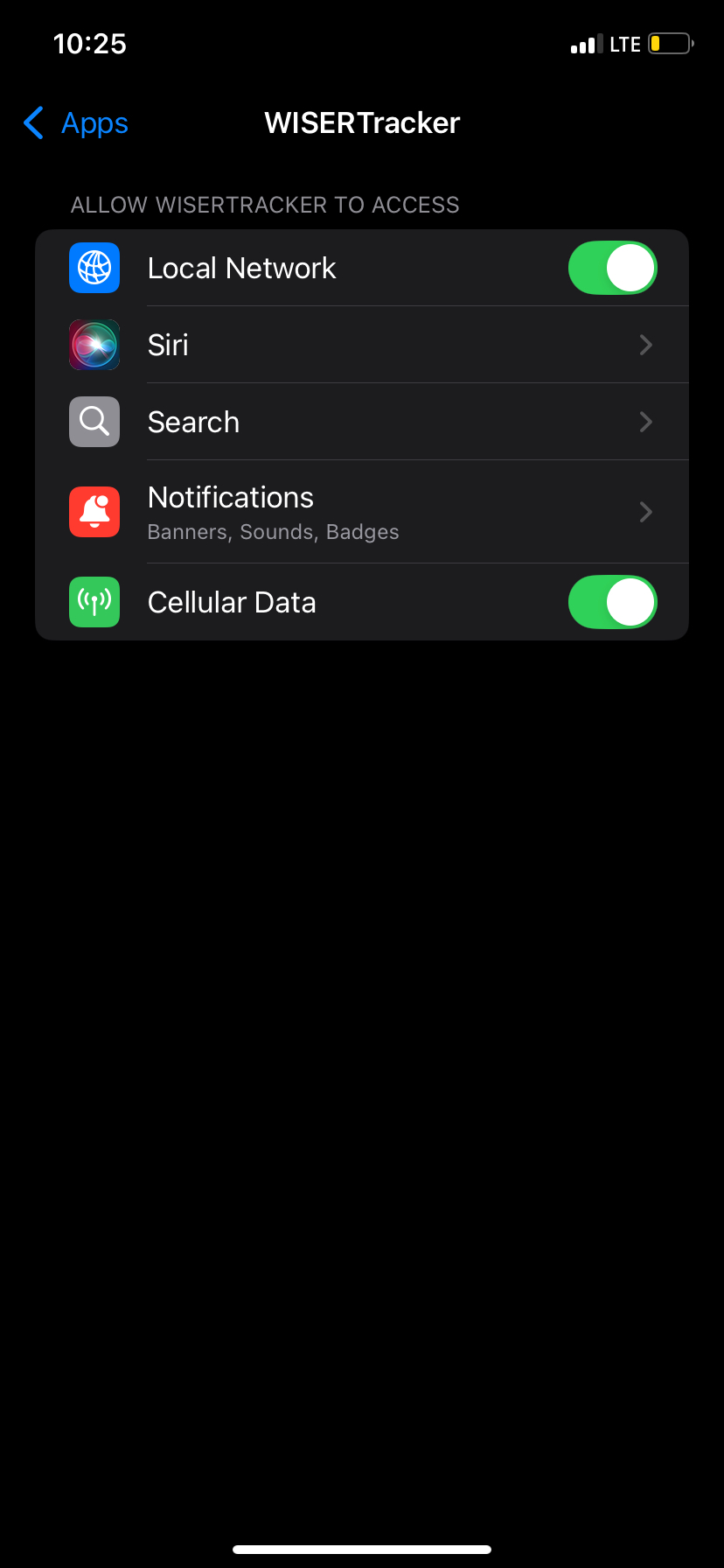
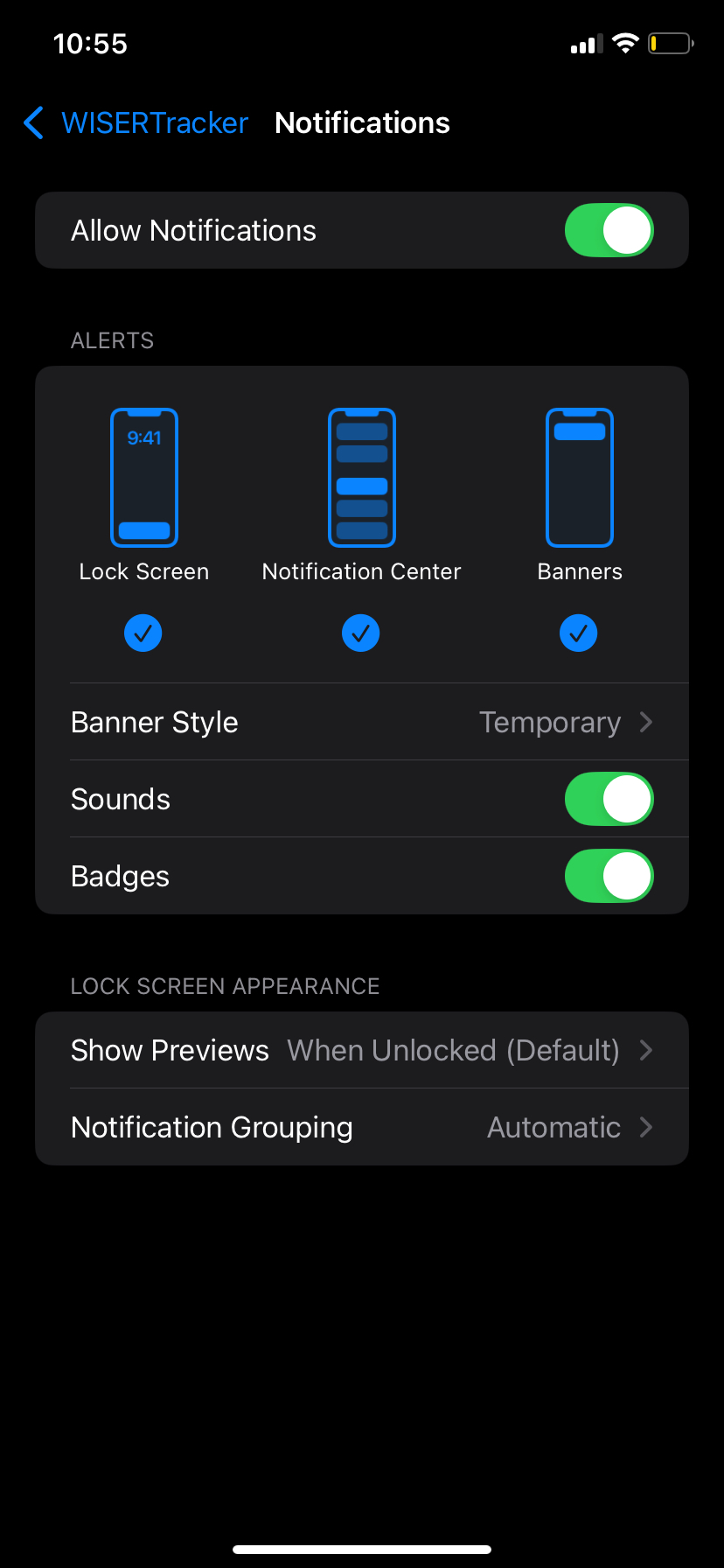
Notifications of system events, changes in system health, and notifications triggered by Rules can be displayed both inside the App and as operating system notifications. Operating System notifications will typically require additional permissions in the operating system. Use the Test Notification button to verify behavior.
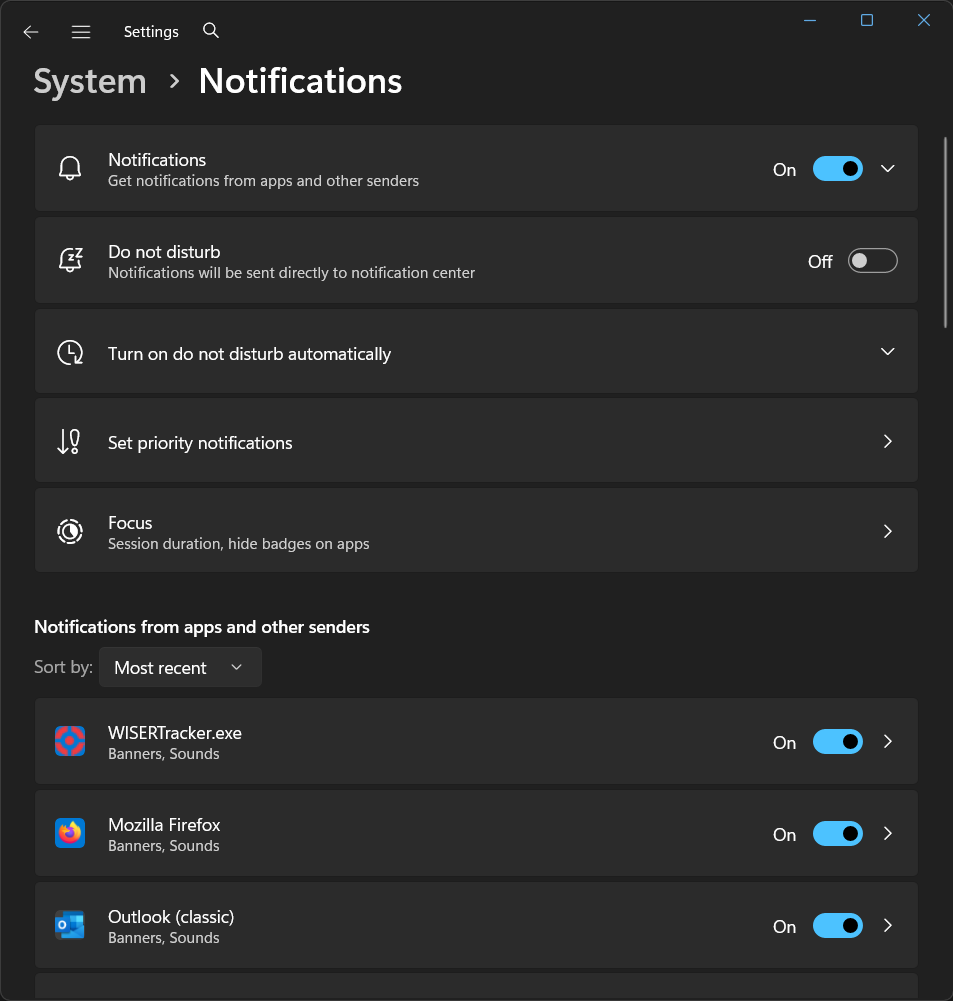
Windows 11
The notification permission can be found under Windows Start Menu → Settings App → System tab → Notifications. Enable notifications both globally and for WISERTracker.exe.
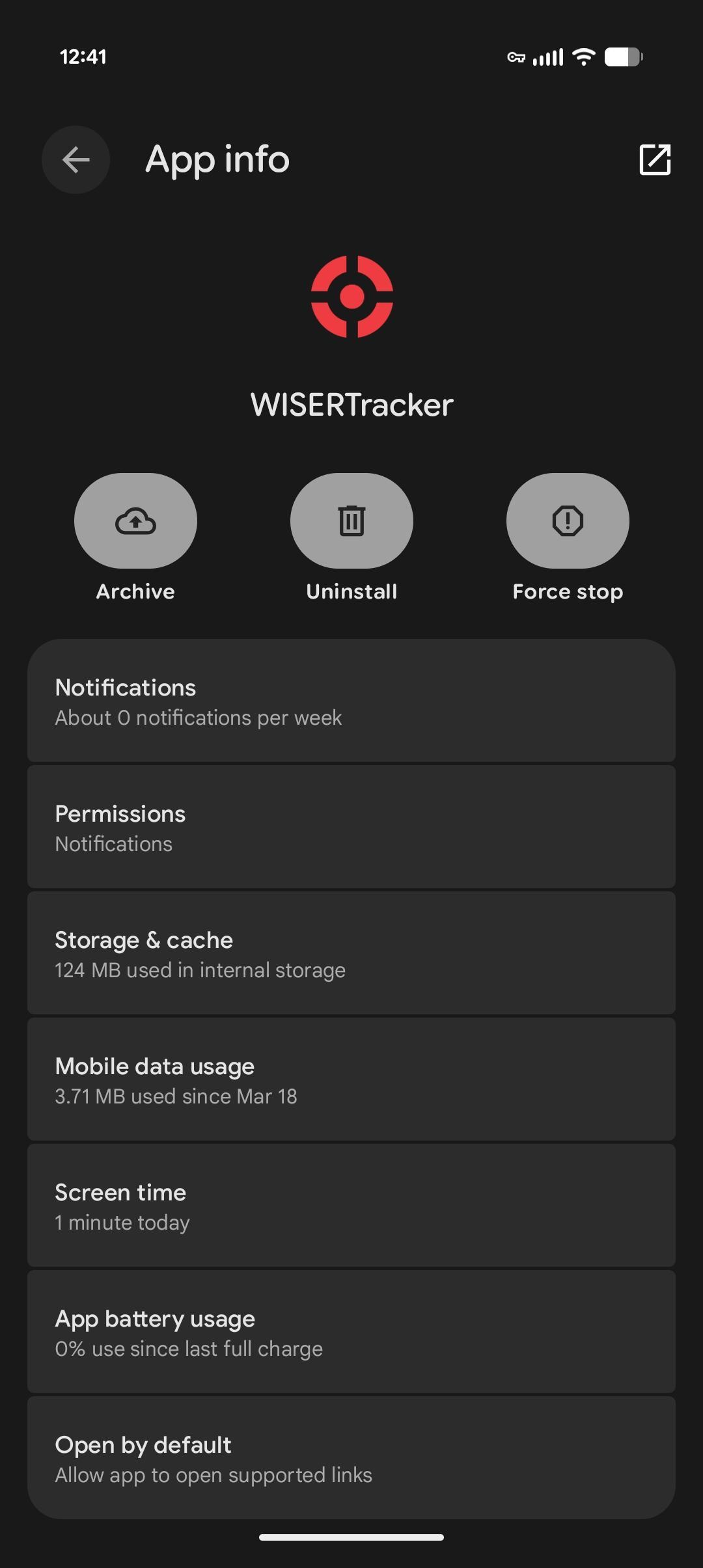
Android
The notification permission location can vary by version of Android. It can typically be found under Settings → Apps → WISER Tracker → Permissions → Notifications.
Apple iOS
The notification permission can be enabled under Settings → Apps → WISERTracker.
Server General
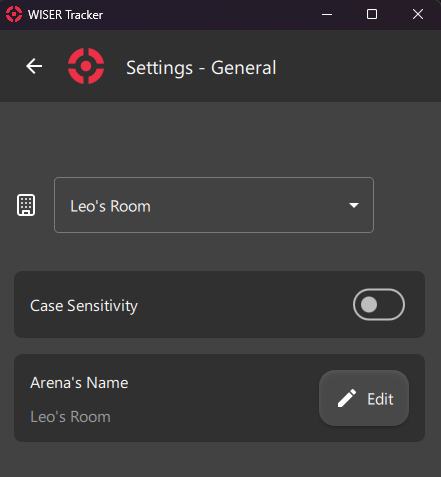
Case Sensitivity
Set if Labels like Name and Alternate ID should be Case Sensitive or Not.
Arena's Name
Update Arena's Name
Info
Empty Names are not Allowed
Tracking
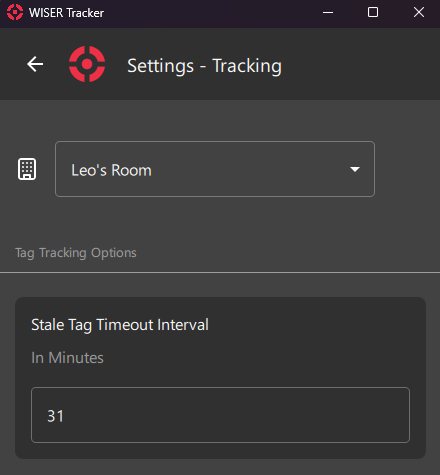
Stale Tag Timeout Interval
Set Interval, in minutes, in which Tags will be set as Stale.
Info
Stale Tags will be set to Hidden
Floorplan
Warning
This feature is not yet fully supported by WISER Server. Changes must still be manually saved in the Server Application UI to persist through restart.
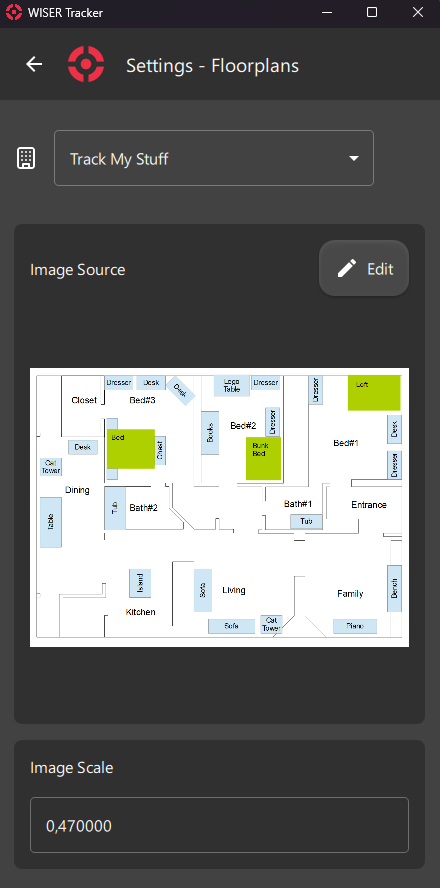
Image Source
Update Floorplan Image
Image Scale
Update Floorplan's Scale
Others
Release Notes
Version 5.5.3 - Sept 1, 2026
- [FIXED] "NotDiscovered" Antennas wont show up in the app
- [ADDED] Override for first screen loaded by a session
Version 5.5.1 - June 15, 2026
- [ADDED] Beta Warning on Zone Management
- [IMPROVED] Overall Performance
Version 5.5.0 - June 09, 2026
- [ADDED] Tag Rules: Toggle to Enable/Disable Rule (Requires Server v2.20.27)
- [ADDED] Basic Zone Creation
- [ADDED] Zone Listing, Renaming and Deleting
- [IMPROVED] Tag Rules Create/Edit Simplified
- [IMPROVED] Tag Management & Arena Map: Overall Performance
- [IMPROVED] Floorplan Loading on Mobile
Version 5.4.0 - Apr 21, 2026
- [ADDED] New Download Button for App & Dev Logs on Dev Settings (Requires Server v2.20.22)
- [FIXED] Fix Filter Tag Options Selection
- [FIXED] Fix Settings not saving properly
- [FIXED] Map Screen: Tags would not load properly or take too long
- [IMPROVED] Map Screen: Improve Performance
- [IMPROVED] Health Status Detection
Version 5.3.2 - Apr 06, 2026
- [FIXED] Fix Map Refresh on Mobile
Version 5.3.1 - Apr 02, 2026
- [ADDED] New Group Created Notification
- [FIXED] Fix Tag CSV Export
- [FIXED] Fix Group List Refresh after New Group Creation
- [IMPROVED] Add Internal Basic Endpoint Response Validation
- [IMPROVED] Tag Assignment: Sanitize Barcode Scan for Tag ID
Version 5.3.0 - Mar 12, 2026
- [ADDED] Session Overwrite Warning
- [CHANGED] Tag Assignment: Changed the logic of Unknown Tags. No settings required anymore, the App will always notify this condition
- [IMPROVED] Map Screen: Search Filter Less Restricted (Stale Tags will be displayed)
- [IMPROVED] List Selection Screen: Added Group Name to Tag Card
- [IMPROVED] List Selection Screen: Improved Filter to filter by Group Name and Tag Extra Properties
- [FIXED] Tag Assignment: Arena Switching Properly Updates Internal Data
- [FIXED] Tag Assignment: Tag Extra Properties shows up now for Unknown Tags
- [FIXED] Map Screen: Tags would not load properly or take too long
- [FIXED] Map Screen: Sometimes the Map Would Stop Working
- [FIXED] Tag Management Screen: Fix Groups not being Filtered by Arena
- [FIXED] Tag Management Screen: Fix Hidden Entities Display based on Selected Arena
- [FIXED] Fix Hidden Entities Save & Load
Version 5.2.1 - Jan 09, 2026
- [FIXED] Antenna Height Data
Version 5.2.0 - Dec 24, 2025
- [CHANGED] Map Search merged with "Map Filters" and it will filter displayed tags based on input
- [CHANGED] Tag Listings wont display all tags by default anymore (but that behavior is still accessible)
- [IMPROVED] When a filter is active, the filter icon in the Arena Map Screen will be highlighted in green
- [IMPROVED] Server Version will have a dedicated pane, on Arena Health, just like the App Version
- [IMPROVED] In-place error messages updated design
- [IMPROVED] Overall Performance
- [FIXED] Sometimes locating a tag would add ghost tags in the background
- [FIXED] Sometimes Tag listings would snap to top or become sluggish
Version 5.1.0 - Nov 14, 2025
- [ADDED] Arena Health Drawer: Refresh Antennas from the Antenna Section
- [ADDED] Notification Settings Screen
- [ADDED] Tag Assignement: Warning Tag is Low on Battery or Offline (Tag must be known to server)
- [FIXED] Tag Rules Subscribe/Unsubscribe
- [FIXED] Arena Map Screen: Search Drawer not always closing after clicking the Locate Button
- [IMPROVED] Add Arena Screen: Improved Session Listing
- [IMPROVED] Scaled Floorplan can be toggled on/off at the Settings Screen (Off by default)
- [IMPROVED] Antennas Loading at the Arena Map Screen
- [IMPROVED] Tag Management Screen: New Group popup now offers Arena Selection
- [IMPROVED] Tag Rules: When leaving Tag Groups and Tags Empty, "All Tags" will be considered (Except on Tag Offline rules)
Version 5.0.0 - Sep 16, 2025
- [ADDED] New Antenna Panel at "Arena Map Screen"
- [ADDED] New "Arena Health Status Icon", available at "Home Screen" and "Arena Map Screen"
- [ADDED] New "Arena Health Drawer", available at "Home Screen" and "Arena Map Screen"
- [ADDED] New Internal Notification System
- [ADDED] New Notification History System (Work In Progress)
- [ADDED] New Map Filters
- [ADDED] New Camera Scannable Types: DataBarLimited (Linear), DXFilmEdge (Linear) and RMQRCode (Matrix)
- [ADDED] New Camera Scanning option: "Try Invert"
- [CHANGED] Arena Map moved to its own Screen. Home Screen will, temporary, list available Screens as buttons
- [CHANGED] Tag & Groups Screen: Export Tags Data Button moved to the Navigation Bar
- [CHANGED] Tag Panel will not auto-track a tag by default. User Action is required now
- [CHANGED] Rename Settings: "Application" to "Device"
- [IMPROVED] Improved Tag Panel at Arena Map Screen
- [IMPROVED] Tag & Groups Screen: On Small screens, filters will be available from the Navigation Bar
- [IMPROVED] Overall Performance
- [REMOVED] Previous "Arena Health Screen" and "Arena Details & Status Screen" were removed in favor of the new "Arena Health Drawer"
Version 4.2.0 - Dec 09, 2024 (Internal Release)
- [ADDED] New 5 Custom Properties to Tags
- [FIXED] Tag & Groups Screen: Fixed Filter Search not always filtering correctly
Version 4.1.2 - Mar 17, 2025
- [FIXED] Fixed Rare Crash at Map Screen
- [FIXED] Fixed Delay When Selecting Zones at Tag Rules Screen
Version 4.1.1 - Aug 22, 2024
- [FIXED] Fix Select All Toggle Not Selecting All in Some Scenarios
Version 4.1.0 - Aug 14, 2024
- [ADDED] New Select All Toggle on Some Screens with selectable Items
- [CHANGED] Badge Input Forms with more than 10 items will only display an info text
- [FIXED] Fixed Scrolling Boundaries on Some Screens
- [FIXED] Fixed Maximum Entries Notation at Tag Rules Details Screen
- [FIXED] Fix Removal of Tags at Group Edit Screen
Version 4.0.11 - Jul 22, 2024
- [FIXED] Fixed Connection Mismatch on Hostname with Mixed Case
- [CHANGED] Updated "Help" and "Release Notes" Links
Version 4.0.10 - Jul 11, 2024
- [IMPROVED] Improved Logs
Version 4.0.9 - Jun 21, 2024
- [FIXED] Antenna listings on some screens
- [FIXED] Drag Handler interfering with Menu
- [IMPROVED] Add Zone & Tag Group Info to CSV Export
- [REMOVED] Tag History Mode
Version 4.0.8 - May 01, 2024
- [FIXED] Active Items out of sync on long lists
- [FIXED] Drag Handler requiring 2 fingers to move the floorplan, instead of 1
- [FIXED] "Erase Tag Data" delay on "Tag Assignment" Screen
- [FIXED] Fix Arena Filter Not Property Propagating the Change
Version 4.0.7 - Mar 12, 2024
- [ADDED] New Console-Like Debug Window for Logs
- [ADDED] Log to File
- [ADDED] Better Feedback on Tag Rules Screen if you open it from the Server GUI
- [ADDED] CLI Option to Update Existing Session Password
- [ADDED] Visibility: New Option to Display Zone Name
- [ADDED] Visibility: New Option to Display Valid Tracking Area
- [ADDED] New Developer Settings
- [ADDED] New Camera Settings
- [ADDED] New Tag Low Battery Setting
- [ADDED] New Tag Opacity Setting
- [ADDED] Server Version to Arena Details Screen
- [ADDED] User Permissions to Arena Details Screen
- [ADDED] Basic Rest API Client in Developer Settings
- [ADDED] Context Menu on Some Forms
- [ADDED] Add Filtering by Tag Group
- [ADDED] Add Filtering by Tag Properties
- [ADDED] Add Android Back Button Detection
- [ADDED] Add SSE Reset on Subscribing or Unsubscribing Tag Rule
- [ADDED] Add Camera Permission Detection and Request Button
- [CHANGED] Tags will still display (Last known data) even if the Arena is set to Not Tracking.
- [CHANGED] Selecting an Arena in any dropdown will also set that Arena as Active in the App
- [CHANGED] Visibility: "Tag Label" Option replaced by "Tag Hex Id". You can now select the labels you want to see
- [CHANGED] Settings will now be stored in an "ini" file (Windows Desktop)
- [CHANGED] Sessions will now be stored in an "ini" file (Windows Desktop)
- [CHANGED] Changed "Reset Zoom" to "Fit Zoom"
- [CHANGED] Tag History will only activate after selecting a tag
- [FIXED] Sometimes using the scroll wheel on other screens would change the arena's zoom
- [FIXED] Search Autofill
- [FIXED] Tag Hidden Status after joining or leaving a group
- [IMPROVED] New Tag Assignament Screen with more edit options
- [IMPROVED] Export Tags to CSV will detect Distance Unit settings
- [IMPROVED] Camera Scanner Improved
- [IMPROVED] Server First Load Improved Performance
- [IMPROVED] Tag History Improved Performance
- [IMPROVED] Tag & Groups Screen Improved Performance
- [IMPROVED] Memory Usage Improved
- [IMPROVED] Improved Filter Search on Tag & Groups Screen
- [IMPROVED] Improved UX and UI
- [IMPROVED] Tag's Label will wrap instead of elide on Tag Listing Screens
- [REMOVED] Visibility: Removed Option to Display Tag Ids in Decimal
Version 3.4.2 - Sep 14, 2023
- [FIXED] iOS Notification System Build
- [FIXED] Fix Antennas Initial Position Shift
Version 3.4.1 - Sep 12, 2023
- [FIXED] Tag History for Active Tag
- [IMPROVED] Tag History Performance
Version 3.4.0 - Aug 28, 2023
- [ADDED] Support for Tag Update via SSE Connection
- [ADDED] Added "Export Tag Data to CSV" Button at Tag & Groups Screen
- [FIXED] The app would halt in the absence of a floorplan image
- [FIXED] Floorplan Image no longer clips tags out of boundary
- [FIXED] Tag History Icon Color
- [IMPROVED] New Panel Zoom Icons
- [IMPROVED] Renamed "Tag Rules" Screen
- [IMPROVED] Improved Performance
- [IMPROVED] "Dead Tags" will show up in the "Tag & Groups" Screen
- [REMOVED] Removed Tag Coordinates from Tag Info Panel
Version 3.3.4 - Jul 14, 2023
- [FIXED] Fix Floorplan Image Settings Update
- [FIXED] Allow Large Floorplan Image
Version 3.3.3 - Jun 27, 2023
- [FIXED] App Crashes on "No camera detected" Error
Version 3.3.2 - Jun 23, 2023
- [ADDED] Alternate Id as Tag Label Visibility Option
- [FIXED] Connection Drop on SSE Subscription Error
- [FIXED] Floorplan settings unavailable
Version 3.3.0 - Apr 27, 2023
- [ADDED] Added Tag Name To Tags in History Mode (at the last position)
- [ADDED] Added some visual feedback on barcode scanning
- [FIXED] Sometimes graphics artifacts would show up on screen on some Intel machines
- [IMPROVED] Upgraded Barcode Library
- [IMPROVED] Upgraded Keychain Library
- [IMPROVED] Upgraded Qt Version
- [IMPROVED] Sorting when changing view at "Tag & Groups Screen"
Version 3.2.0
- [ADDED] Desktop System Notification
- [ADDED] Android System Notification
- [ADDED] iOs System Notification
- [ADDED] Desktop System Tray Icon
- [ADDED] SSE Connection (Requires Server Auth)
- [ADDED] Subscription Button at "Tag Rules Screen" (Requires WISER Server Version 2.18.36 or above)
- [FIXED] "Tag Rules Screen" will show a message when there are no rules to be listed
- [FIXED] Sometimes an Auth Error would show up on screen just before a successful operation
- [FIXED] Sometimes when Maximized, the app would have a blurred resolution
- [IMPROVED] "Add Arena Screen" Redesign
- [IMPROVED] "Session Manager Screen" now shows SSE Connection Information
- [IMPROVED] Sessions will now save SSE Information if available
- [IMPROVED] "Arena Details Screen" now shows SSE Connection & Subscription Information
Version 3.1.3 - Apr 04, 2023
- [FIXED] When switching Arenas on "Tag Rules Details" Screen, Arena content would not update
- [IMPROVED] "Extra Info" property is now Searchable on "Tag & Groups" Screen
- [IMPROVED] "Tag Rules" Screen will now have the option to list "All Arenas"
- [IMPROVED] "Tag & Groups" Screen will now allow scroll bar dragging
- [IMPROVED] Improved data refresh on "Tag & Groups" Screen
- [IMPROVED] Improved data refresh on "Tag Assignment & Unassignment" Screen
Version 3.1.2 - Mar 22, 2023
- [ADDED] "Tab" & "Enter" Key Behavior added to "Tag Assignment & Unassignment Screen"
- [CHANGED] Tag "Name" property replaced by "Extra Info". For naming tags, use "Alternate ID" property
- [FIXED] Search Bar Dropdown now update its content, if needed, when it's open
- [IMPROVED] Search Bar Camera Button now opens a quick camera popup
- [IMPROVED] "Tag Assignment & Unassignment Screen" will now give better feedback on error and success
Version 3.1.0 - Feb 27, 2023
- [ADDED] Windowed/Maximized State will now persist after closing the App
- [ADDED] New Option to Update Floorplan Image at Floorplans Setting Screen
- [ADDED] New Option to Set "Distance Unit" at Application Setting Screen
- [ADDED] New Visibility Options at Visibility Drawer and Application Setting Screen
- [ADDED] Dedicated Application Setting Screen
- [ADDED] Dedicated General Setting Screen
- [ADDED] Dedicated Tracking Setting Screen
- [ADDED] Dedicated Floorplans Setting Screen
- [FIXED] Sometimes when switching Arenas, the Search Box would not work
- [FIXED] Sometimes the Tag Name would show as "NaN" on Group Edit Screen
- [IMPROVED] Better Performance when Group Color (Visibility) is Enabled
- [IMPROVED] Tags and Groups Visibility will now persist after closing the App
- [IMPROVED] On Selection Screens, you can click anywhere on the Card, besides the Checkbox
- [IMPROVED] New Icon and Color for Antennas
- [IMPROVED] Better Scaling of Tags and Antennas
- [IMPROVED] Visibility Options also available on new Application Setting Screen
- [IMPROVED] "Settings" Screen Redesign
- [IMPROVED] Besides the "Go Back" Button, you can click anywhere on the Navigation Bar to "Go Back"
- [REMOVED] Tag History Display Modes were moved to the Visibility Drawer and Application Setting Screen
Version 3.0.2 - Jan 20, 2023
- [IMPROVED] Barcode Decoding
Version 3.0.1 - Jan 03, 2023
- [ADDED] Menu option for Release Notes
- [FIXED] Search Bar Not Selecting Tag After Autocomplete
Version 3.0.0 - Nov 18, 2022
- [ADDED] Arena Details Screen
- [ADDED] Dark Theme
- [ADDED] "Assign Tag" Option added to the "Add Floating Button"
- [FIXED] Mouse Does Not Need to be on top of the Arena Image for Zoom (Mouse Wheel) to Work (Desktop)
- [IMPROVED] Arena's Name, if available, will show up in all Arena Listing
- [IMPROVED] Arena Centralizes when First Appearing on Screen
- [IMPROVED] "Settings" Screen Redesign
- [IMPROVED] "Sessions" Screen Redesign
- [IMPROVED] "Add Arena" Screen Redesign
- [IMPROVED] "Arena Health" Screen Redesign
- [IMPROVED] "Tag Assignment" & "Tag Unassignment" Screen Redesign
- [IMPROVED] Floorplan Scale Settings integrated with API
- [IMPROVED] Tag Timeout Settings integrated with API
- [IMPROVED] "Connection" Renamed to "Arena"
- [IMPROVED] New Arena Icon
- [IMPROVED] Input Dialog Redesign
Version 2.3.2 - Sep 28, 2022
- [ADDED] Search Filtering to Listings
- [ADDED] Tag & Groups Screen now allows you to sort tags by Battery level
- [ADDED] Tag Edit Button on "Tag Info" Panel
- [ADDED] Tag Group Edit Screen
- [ADDED] Delete Button for Tag Group
- [ADDED] Confirmation Dialog when executing some actions
- [ADDED] Tool Tips to all Fields in Tag Rule's Screen
- [FIXED] On Tag Rules's screen, "Maximum Entries" and "Flush Events Older Than" fields should be visible only when "Event Table Name" is checked
- [FIXED] On Tag Rules's screen, "Report Depth" field should be visible only for "Tag Moved" type
- [FIXED] Sub Connection Replacing main Mesh
- [IMPROVED] "Tag Info" Panel Redesign
- [IMPROVED] Better Error Feedback in creating/editing Tag Rule's Screen
- [IMPROVED] Reordered some fields in creating/editing Tag Rule's Screen
- [IMPROVED] "Show Antennas Nodes" Settings moved to Visibility Drawer Menu
- [IMPROVED] Better Feedback when creating a new Tag Group
- [IMPROVED] Better spacing between icons, inside the search bar
- [IMPROVED] Tags inside a zone, will display a color halo for each overlapping zone
- [IMPROVED] Zone areas are now drawn below tags and antennas, improving the color perception
- [IMPROVED] Tag Edit Screen Redesign
- [IMPROVED] Tag Listing inside Tag Rules now shows Id, name, and alternate Id
Version 2.2.0 - Aug 04, 2022
- [ADDED] Tag Rules & Notifications creation wizard
- [ADDED] Hidden/Stale Tags will show up on the Arena when selected and disappear again when deselected
- [ADDED] Tag & Groups Screen now allows you to filter groups per connection
- [ADDED] Tag & Groups Screen now allows you to filter tags per connection
- [ADDED] Tag & Groups Screen now allows you to sort tags by "Name ascending", "Name descending", "last seen ascending" and "last seen descending"
- [ADDED] Tag & Groups Screen now allows you to sort groups by "Name ascending" and "Name descending"
- [ADDED] Zoom controls on bottom left corner
- [ADDED] Floating Add button on the bottom right corner
- [ADDED] Menu option for online manual
- [FIXED] Fixes to session save / load credentials
- [FIXED] Floorplan Scroll Gesture being Propagate to Menu, making it unable to work properly
- [FIXED] Sometimes when first connecting to a server, tags would not load
- [FIXED] Connecting to an empty server address
- [FIXED] Multiple "connect screens" on top of each other
- [IMPROVED] Performance improvements
- [IMPROVED] Expand Tag Tapping Area. Now it's possible to select a tag by tapping its icon or label
- [IMPROVED] Unified Menu Bar across platforms for better user experience
- [IMPROVED] Arena Connection Count & Modal replaced By Drawer Menu and moved to the navigation bar
- [IMPROVED] History button moved to the navigation bar
- [IMPROVED] Visibility button was replaced By Drawer Menu and moved to the navigation bar
- [IMPROVED] Main Menu items divided by context groups (Inside Drawer Menu)
- [IMPROVED] Hovering the Tag Icon on the arena will highlight its name (and if the icon is in a "dot style", it will change back to "target style" while in hover state)
- [IMPROVED] Arena Search bar will list only its tags and the revamped "Tag & Group" Screen will list all available Tags
- [IMPROVED] New Layout on "Tag & Groups" Screen
Version 1.12.6 - Jan 11, 2022
- Fix touch input on Windows
- Fix zoom to mouse on Windows
- Full tag icons are used on Windows
- Windows version does not stop tracking when minimized / in the background
Version 1.12.5 - Jan 03, 2022
- Global tag search across all active connections
- Save / load sessions
- Barcode disassociation menu option
- Tag icons show group color
- Set / edit group color from Group Selection dialog
- Overall performance improvements for very large numbers of tags
- Bug fixes and misc. usability improvements
Software update
On iOS and Android, the Tracker App will update automatically through those apps' stores.
On PC, the Tracker App will not automatically update. Uninstall the old version and install the new version. Settings will be preserved.
FAQ
1. Tag Rules Notification Not Working
1.1. Check Arena SSE Connection
Go to Arena Details & Status Screen and check if Arena SSE Connection is OK
- Status Not Set:
- SSE Must be configured on the Wiser Server and you must use Auth at the Add Arena Screen.
- Status Timeout: (After a few minutes)
- Check your Firewall for the SSE Address and SSE Port
- Status OK:
- Check Tag Rules Subscription in the Section Below
1.2. Check Tag Rules Subscription
- Go to the Tag Rules Screen and check if you are Subscribed to all desired Rules.
Info
Before version 4.0, it was required to Manually restart the SSE Connection after Subscribing or Unsubscribing to a Rule.
How to: (Either one)
- Disconnect and Reconnect
- Go to the Arena Details & Status Screen and click the Reset Button at the Arena SSE Connection Card
1.3. Check Your Operation System Notification Settings
Some systems might silence notifications in some situations.