Tags & Groups
This Screen is available from the Main Menu on the First Steps: Home Screen and in here, you will be able to List, See, and Edit Tags and Groups.
You can toggle Tag or Group View in the top Tab Bar.
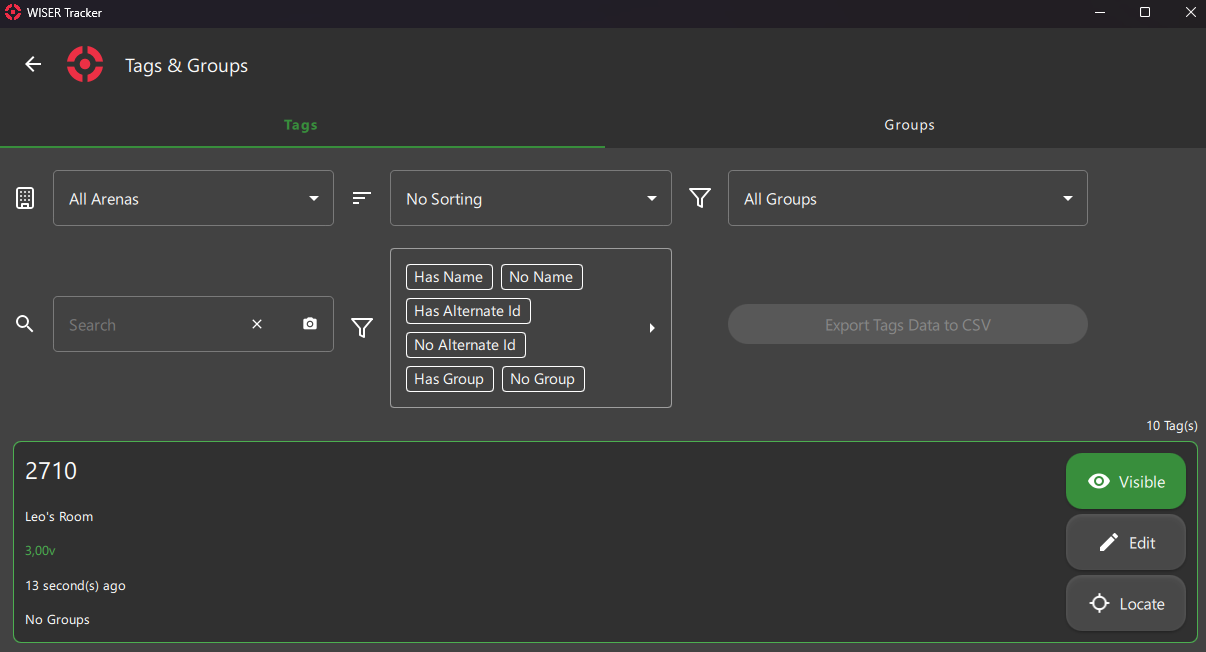
New Tags
New Tags registered to your Licence will automatically show up in the App.
New Groups
To create new Groups, select the Group option in the top Tab Bar and a Floating Button will be available in the Bottom Right corner of the Screen
Filters & Actions
Arena Filter
By Default the All Arenas options will be selected and it will list all Tags and Groups from connected Arenas.
Selecting an Arena will also set that Arena as active (in the Home Screen).
Search Filter
- Search Groups by
Name. - Search Tags by
Hex ID,NameorAlternate ID.
Info
INFO
Search will ignore whitespaces.
If your tag is set to "My Tag - 1234", you can type "MyTag-1234".
Sort
You can select the sort of your liking from various options. The Sort option will revert back to default every time you leave the screen.
Group Filter
You can list Tags from All Groups or Select a single Group.
Property Filter
Mix the available options:
Has Extra Info: Will List Tags that have an Extra InfoNo Extra Info: Will List Tags without an Extra InfoHas Alternate ID: Will List Tags that have an Alternate IDNo Alternate ID: Will List Tags without an Alternate IDHas Group: Will List Tags that are in a groupNo Group: Will List Tags without any groupIs Inactive: Will List Tags that Never got a Location/PingNot Inactive: Will List Tags that Got a Location/Ping at some point
Export Tag Data to CSV
- A single Arena must be selected.
- We use
;as Separator. - Unit System (Imperial or Metric) from the Application Settings Screen will be used.
Cards Action Buttons
Visibility
- Tags & Groups can have their visibility toggled.
- Timeout Tags can not be set to visible.
- Tags Added to a Group will replicate its Visibility.
- Tags Removed from a Group will be set to Visible.
- Groups will propagate their visibility to their Tags.
Info
INFO
After Updating a Group Visibility, you can cherry-pick some tags and set their visibility individually.
Info
NOTE
We currently don't offer a way of setting a Group as Leader/Main/Active.
Tags with more than one Group will replicate the last updated Group Visibility.
Edit
Both Tag and Group offer an Edit Screen. Remember to hit Save when you are done.
Locate
This action will move you to the First Steps: Home Screen and open a First Steps: 3 Tag Details Panel. The app will also automatically switch to Selected Tag's Arena.
Info
INFO
Even Hidden Tags will show up when you Click Locate. They will be visible as long as the Panel is open.